
Guide Content
Download the PHLAGO App: Your Guide to Easy Installation and Updates
Ready to play? Get the PHLAGO app on your Android phone quickly. This guide helps you download the Android APK, install it correctly, and keep it updated for the best gaming experience. For iPhone users, we’ll show you how to access PHLAGO directly through your mobile browser.
Play Anywhere Setup
Installing the PHLAGO Android APK is straightforward. First, you need to allow installations from unknown sources in your phone settings. This is a common step for apps not downloaded from the Google Play Store. Make sure you download the APK only from the official phlagobet.net site to ensure security. Following these steps helps you get the app running without issues, so you can enjoy PHLAGO Game right away.
- Download the APK: Visit phlagobet.net on your Android device and tap the download button for the PHLAGO app. The Android APK file will start downloading.
- Enable Unknown Sources: Go to your phone’s Settings > Security (or Privacy) > Install unknown apps. Find your browser and toggle on ‘Allow from this source’.
- Run Installation: Open the downloaded APK file from your notifications or file manager. Tap ‘Install’ and wait for the process to complete.
- Launch PHLAGO: Once installed, you’ll see the PHLAGO icon on your home screen. Tap it to open the app and start playing.
Mobile Play Center
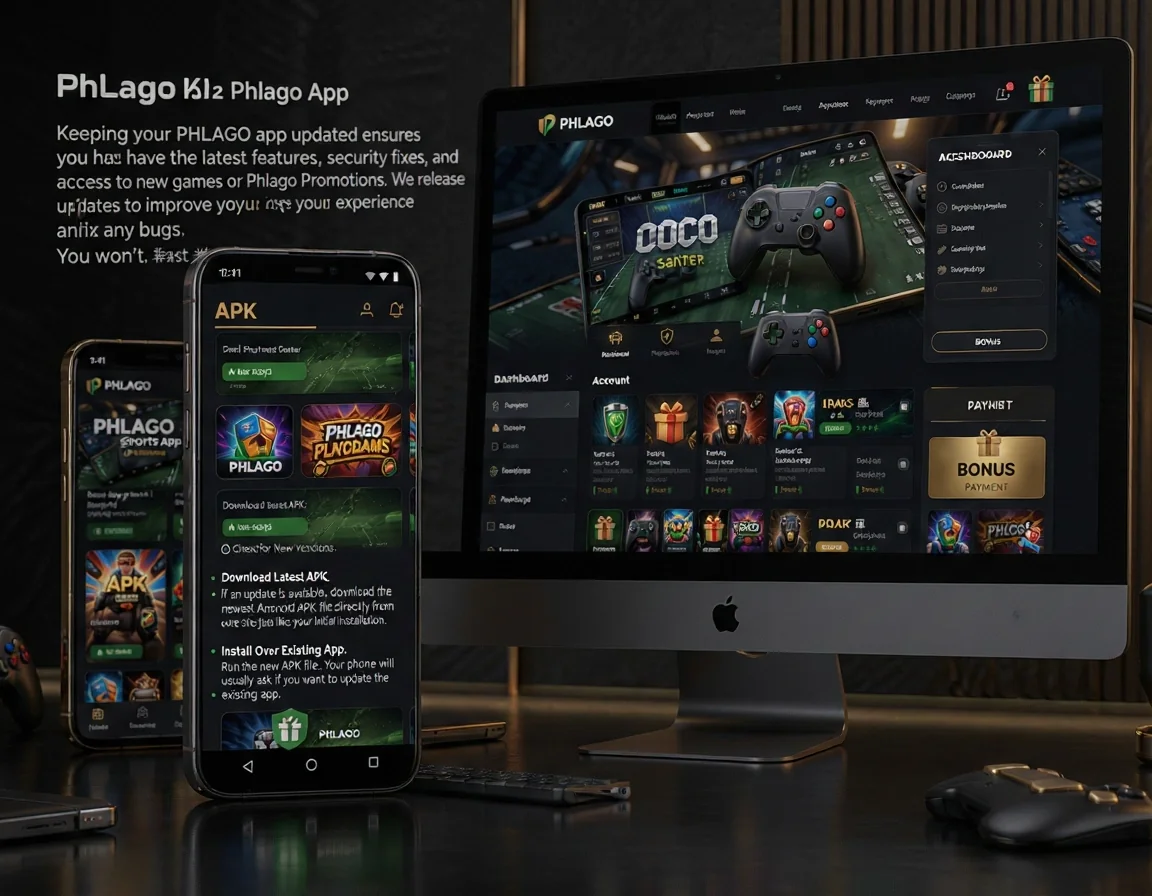
Keeping your PHLAGO app updated ensures you have the latest features, security fixes, and access to new games or Phlago Promotions. We release updates to improve your experience and fix any bugs. You won’t find automatic updates like on app stores, so it’s good to check for new versions manually. Updating is usually as simple as downloading the new Android APK and installing it over the old one.
- Check for New Versions: Visit the official phlagobet.net site regularly or check in-app notifications for news about a new PHLAGO app version.
- Download Latest APK: If an update is available, download the newest Android APK file directly from our site, just like your initial installation.
- Install Over Existing App: Run the new APK file. Your phone will usually ask if you want to update the existing app. Confirm to proceed.
- Verify Update: After installation, open the app. You can often check the version number in the app’s ‘About Us’ or settings section to confirm the update.
App And Browser Access
Sometimes, the PHLAGO app installation might fail. This can be frustrating, but there are common reasons and simple fixes. Most often, it’s related to device storage, internet connection, or security settings. Don’t worry, we’ll walk you through the steps to troubleshoot these problems so you can get back to your games. Remember to have enough Device Storage available before starting.
- Check Device Storage: Ensure you have enough free space on your phone. Lack of Device Storage is a common cause for failed installations. Delete unnecessary files if needed.
- Stable Internet Connection: A weak or unstable internet connection can corrupt the APK download. Try downloading again using a strong Wi-Fi connection.
- Allow Unknown Sources: Double-check your Android security settings to make sure ‘Install unknown apps’ is enabled for your browser. This is crucial for Android APK installation.
- Clear Cache and Data: If you’re updating, try clearing the cache and data of the existing PHLAGO app from your phone’s app settings before installing the new APK.
App And Browser Access
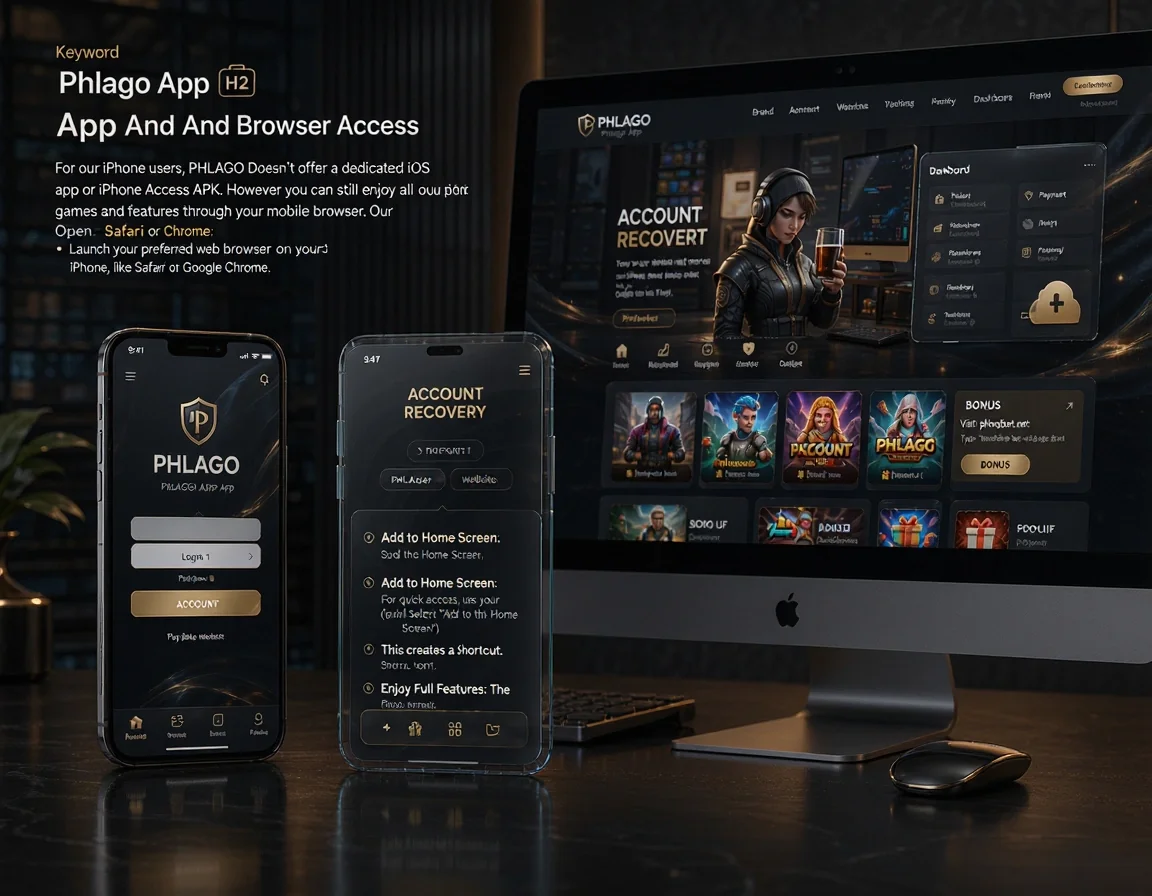
For our iPhone users, PHLAGO doesn’t offer a dedicated iOS app or iPhone Access APK. However, you can still enjoy all our games and features directly through your mobile browser. Our website is fully optimized for mobile devices, giving you a smooth and responsive experience similar to using an app. This way, you don’t miss out on any of the fun, including Phlago Sports.
- Open Safari or Chrome: Launch your preferred web browser on your iPhone, like Safari or Google Chrome.
- Visit phlagobet.net: Type ‘phlagobet.net’ into the address bar and press Enter to load the PHLAGO website.
- Add to Home Screen: For quick access, use your browser’s ‘Share’ option (the square with an arrow pointing up) and select ‘Add to Home Screen’. This creates a shortcut.
- Enjoy Full Features: The mobile browser version offers all functionalities, from Phlago Register to playing games, just like an app.
Device Access Notes
When you install the PHLAGO app, it might ask for certain Permissions to function correctly. These permissions are usually for features like accessing your storage to save game data or managing network connections. It’s important to understand why these are requested. We only ask for necessary permissions that enhance your gaming experience and do not collect unnecessary personal data. Reviewing Permissions is a good security practice.
- Storage Access: This permission allows the app to save game progress, settings, and other necessary files on your device’s internal storage.
- Network Access: Essential for connecting to our servers, playing online games, and receiving updates or Phlago Promotions.
- Check App Info: After installation, you can always go to your phone’s Settings > Apps > PHLAGO and review the permissions granted or revoke them if you feel uncomfortable.
- Update Permissions: Sometimes, an App Update might require new permissions. Your device will usually prompt you to review these during the update process.
Play Anywhere Setup
- Check storage
- Remove old files
- Use stable connection
- Confirm source
App And Browser Access
- Open app
- Test login
- Check guide pages
- Keep file notes
Quick Answers
How do I install the Android APK safely?
To install the Android APK safely, first download it only from the official phlagobet.net website. Then, go to your phone’s settings, find ‘Install unknown apps’ under Security or Privacy, and allow your browser to install apps from unknown sources. Finally, open the downloaded APK file to complete the installation.
Can iPhone users access the site without an APK?
Yes, iPhone users can access PHLAGO directly through their mobile browser (like Safari or Chrome). Our website, phlagobet.net, is fully optimized for mobile, so you get a complete and smooth experience without needing to install an app.
Why does the app installation fail on Android?
App installation can fail due to several reasons: insufficient device storage, an unstable internet connection during download, or not enabling ‘Install unknown apps’ in your phone’s security settings. Check these common issues and try again.
How do I update the app after downloading it?
To update the app, visit the official phlagobet.net site to check for the latest Android APK version. Download the new APK file, and then run it. Your phone will usually prompt you to install the update over your existing PHLAGO app.
Which permissions should I check before using the app?
The PHLAGO app typically requires permissions for Storage (to save game data) and Network Access (for online play and updates). You can review these permissions in your phone’s Settings > Apps > PHLAGO at any time to understand what the app is allowed to do.
What should I do after installation if login fails?
If login fails after installation, first ensure you have a stable internet connection. Double-check your username and password. If the problem persists, try restarting the app or your device. If you still can’t log in, contact PHLAGO customer support for assistance.